
Find your way around the HelpSite app
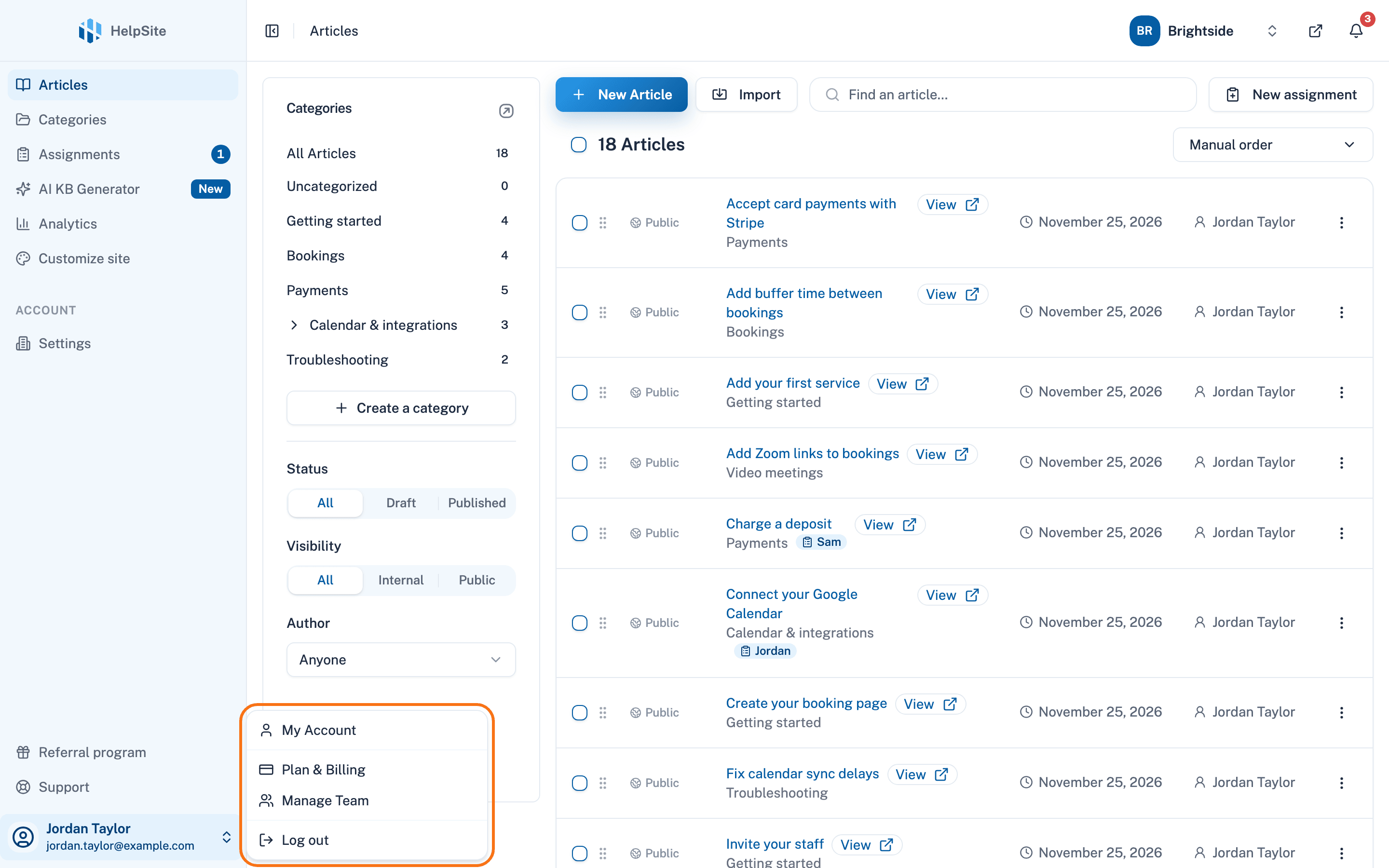
The HelpSite app has a sidebar for the current site's content and settings, and a header for switching sites and reading notifications.
This page lists what each one holds.
What's in the sidebar?
| Item | What it opens |
|---|---|
| Articles | Every article in the current site, with search, filters and bulk actions. See Find, filter and bulk-edit articles. |
| Categories | Create, nest, reorder and delete categories. See Create and organize categories. |
| Assignments | Requests to write, update or review articles, with a count of the ones waiting on you. If your plan doesn't include Assignments, the item shows an upgrade badge. See Assign articles to team members. |
| AI KB Generator | Drafts a knowledge base from your website and documents. See What the AI KB Generator does. |
| Analytics | Visitors, searches, article ratings and AI Chatbot conversations. See Use the Analytics dashboard. |
| Customize site | The current site's settings and design (tabs below). |
| Settings (under Account) | Settings for your whole account, shared by all your sites (tabs below). |
| Referral program | Your referral link and what it has earned. |
| Support | This help center, in a new tab. |
Click the HelpSite logo at the top of the sidebar to go back to Articles. The button at the left of the header collapses the sidebar to icons.
Your name at the bottom of the sidebar opens a menu with My Account, Plan & Billing, Manage Team and Log out.
What's in the header?
- Site switcher. Shows the site you're working in. Click it to search your sites with Search site..., pick another site, or click Manage Sites to open Settings > Sites.
- Live site link. The arrow icon next to the switcher opens your help center in a new tab. While you edit a published article, it opens that article.
- Notifications. The bell opens your notifications, with a count of unread ones. See How notifications work.
What's the difference between Customize site and Settings?
Customize site changes only the site you're working in, so each site has its own. Settings changes your account and applies to every site.
Customize site tabs
| Tab | What you set there |
|---|---|
| General | Site name, logo, favicon, HelpSite URL, custom domain, and options such as article ratings and the table of contents. See Change your site's name, logo and subdomain. |
| Contact Form | Turn the contact form on or off and choose where messages go. See How the contact form works. |
| Privacy | Who can see the help center. See Make your help center private. |
| Design | Theme, colors, fonts and HTML templates. See Choose and customize a theme. |
| Redirects | Send old URLs to new pages. See Set up redirects. |
| AI Chatbot | Turn on and configure the chatbot. See Set up or turn off the AI Chatbot. |
Settings tabs
| Tab | What you set there |
|---|---|
| My Account | Your name, email, password, photo, time zone and two-factor authentication. See Change your name, email or password. |
| Sites | Create, duplicate, export and delete sites, and choose the site that opens when you log in. See Create and manage multiple sites. |
| Plan & Billing | Your plan, billing period, payment details and invoices. See Change your plan or billing period. |
| Referral program | The same page as the sidebar item. |
| Team | Invite and remove team members and change their roles. See Invite a team member. |
| Roles | Custom roles with permissions per site. See Set team member roles and permissions. |
| API keys | Keys for the REST API and MCP. See Create an API key. |
If your account isn't on a trial or a paid plan, Settings hides the Sites, Team and Roles tabs, and your name menu hides Manage Team.